
How to Fix 403 Forbidden Error in WordPress
Hey there, folks. If you're running a WordPress site and suddenly bump into that annoying 403 Forbidden message, you're not alone. It's one of those errors that can pop up out of nowhere and leave you scratching your head. But don't worry, I've got your back. In this detailed guide, we'll dive deep into what causes this error, why it happens especially in WordPress setups, and most importantly, how to fix 403 Forbidden Error step by step. I've also added some real-life case studies from actual users who faced this issue – these are based on common problems shared in forums and support threads in recent years, including up to 2026 updates. By the end, you'll have all the tools to get your site back up and running smoothly. Whether you're a beginner or have been tinkering with WordPress for years, this 2026 update covers the latest tricks and tips to tackle this issue.
First off, let's understand what this error really means. The 403 Forbidden Error is basically the server telling you, "Hey, I know what you're asking for, but I'm not letting you in." It's different from a 404 Not Found, where the page just doesn't exist. Here, the page is there, but access is blocked due to permissions or configurations gone wrong. In WordPress, this can hit your admin dashboard, specific pages, or even the whole site. It's frustrating because it blocks visitors and can hurt your SEO if not fixed quickly.
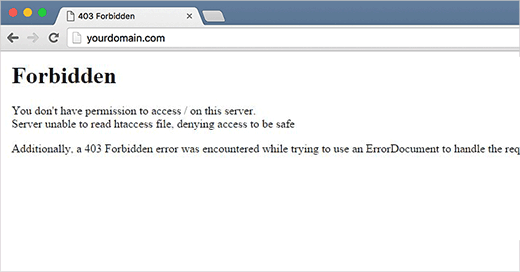
As you can see in the screenshot above, this is a typical 403 Forbidden Error page you might encounter on a WordPress site. Credit: wpbeginner.com.
Now, why does this happen in WordPress? There are a bunch of reasons, from simple file permission slips to more complex plugin conflicts. Servers are strict about security, and WordPress, being so popular, is a prime target for issues like these. In 2026, with updates to PHP versions, security protocols, and hosting environments, some older setups might trigger this more often. But the good news is, most fixes are straightforward and don't require you to be a coding wizard.
Before we jump into the solutions, a quick note: always back up your site first. Use plugins like UpdraftPlus or your host's built-in tools. That way, if something goes sideways, you can roll back easily. Alright, let's get into the common causes and how to fix them.
What Causes the 403 Forbidden Error in WordPress?
To fix 403 Forbidden Error effectively, you need to know the root causes. This error stems from the HTTP status code family, where the server understands the request but refuses to authorize it. In WordPress terms, it's often linked to how your files and directories are set up on the server.
One big culprit is incorrect file permissions. WordPress files need specific access levels – too loose, and it's a security risk; too tight, and you get locked out. Folders should generally allow reading and executing, but not writing by just anyone. Files are similar but more restricted.
Another common issue is a messed-up .htaccess file. This little file in your WordPress root directory controls things like permalinks and redirects. If it's corrupted – maybe from a bad plugin update or manual edit – it can block access.
Plugins are a double-edged sword. Security plugins like Wordfence or Sucuri are great, but if they're overzealous, they might flag legitimate requests as threats, leading to 403 errors. In 2026, with AI-driven security getting smarter, misconfigurations are still possible.
Themes can cause trouble too. A faulty theme might have code that conflicts with server rules. Or, if you're using a CDN like Cloudflare, their settings might be clashing with your site's permissions.
Server-side problems aren't rare either. Your hosting provider might have mod_security rules that trip on certain WordPress actions. Hotlinking protection, where others steal your images, can sometimes backfire on your own site.
Malware is a sneaky one. If your site gets infected, hackers might alter permissions to hide their tracks, resulting in 403 errors.
Lastly, browser issues like cached data or cookies can mimic this error, though they're easier to fix.
Understanding these helps in troubleshooting. Don't panic – we'll cover each in detail, including real case studies.
Step-by-Step Ways to Fix 403 Forbidden Error
Let's roll up our sleeves and start fixing. I'll walk you through each method, explaining why it works and what to watch out for. Remember, start with the simplest ones.
Method 1: Clear Your Browser Cache and Cookies
Sometimes, the problem isn't on the server at all. Your browser might be holding onto old data that's causing the 403. Clearing cache refreshes everything.
In Chrome, go to Settings > Privacy and security > Clear browsing data. Check cookies and cached images, then hit clear. For Firefox or Edge, it's similar under privacy settings.
After that, reload your site. If the error vanishes, great! If not, move on. This is quick and harmless.
In 2026, with browsers like Chrome updating their privacy features, this step is even more relevant as they handle cookies stricter.
Method 2: Check and Reset File Permissions
File permissions are like door locks on your server. Wrong keys, no entry. In WordPress, folders should be 755, files 644. Anything else can trigger 403.
You can check this via FTP using tools like FileZilla. Connect to your server, right-click on wp-content or other folders, and see the numeric value.
If they're off, change them to the defaults. For the wp-admin folder, ensure it's not too permissive.
Many hosts have a "fix permissions" button in cPanel or their dashboard.
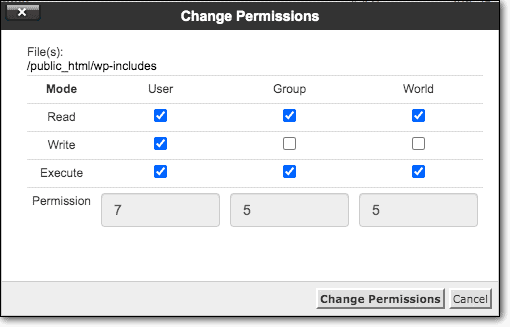
Here's an example of how file permissions look in a file manager. Notice the numbers – that's what you need to match. Credit: malcare.com.
Resetting permissions often solves 403 issues caused by updates or migrations. Be careful not to make them too open, as that invites hackers.
If you're on shared hosting, permissions might be stricter. Check with your host for recommended settings.
Method 3: Regenerate or Edit the .htaccess File
The .htaccess file is WordPress's rulebook for the server. If it's corrupt, access gets forbidden.
To fix, log in via FTP, find .htaccess in the root, rename it to .htaccess_old. Then, go to WordPress dashboard > Settings > Permalinks, and save changes. This generates a fresh one.
If that works, compare the old and new to see what went wrong – maybe a bad redirect rule.

This shows a typical .htaccess file location in the public_html folder. Credit: malcare.com.
In 2026, with Apache updates, .htaccess might behave differently on newer servers. If you're on Nginx, this file doesn't apply – check server configs instead.
Method 4: Deactivate Plugins One by One
Plugins are handy, but a faulty one can lock you out. Security plugins are prime suspects.
To test, deactivate all plugins. If the error goes away, reactivate them one at a time to find the culprit.
If you can't access the dashboard, use FTP to rename the plugins folder to plugins_old. WordPress will deactivate them all.
Then, rename back and activate individually.
Common offenders: security, caching like WP Super Cache, or optimization plugins.

Deactivating plugins via the dashboard looks straightforward, like this. Credit: searchenginejournal.com.
Update plugins regularly to avoid this. In 2026, with WordPress 6.x versions, compatibility is key.
Method 5: Switch to a Default Theme
Themes can have code that triggers 403. Switch to Twenty Twenty-Six or a default one to test.
Go to Appearance > Themes, activate a stock one. If the error resolves, your theme is the issue – update or replace it.
Via FTP, rename your theme folder to force WordPress to default.
Method 6: Disable CDN Temporarily
CDNs like Cloudflare speed up sites but can cause 403 if misconfigured. Rules for WAF (Web Application Firewall) might block legit traffic.
Pause your CDN or bypass it for your IP. In Cloudflare, go to caching > configuration > purge everything.
If that fixes it, adjust rules to allow WordPress actions.

A common Cloudflare 403 error screen that WordPress users report. Credit: Cloudflare Community.
Method 7: Scan for Malware
Malware can change permissions or inject code leading to 403. Use plugins like Sucuri or Wordfence to scan.
If infected, clean it up or restore from backup.
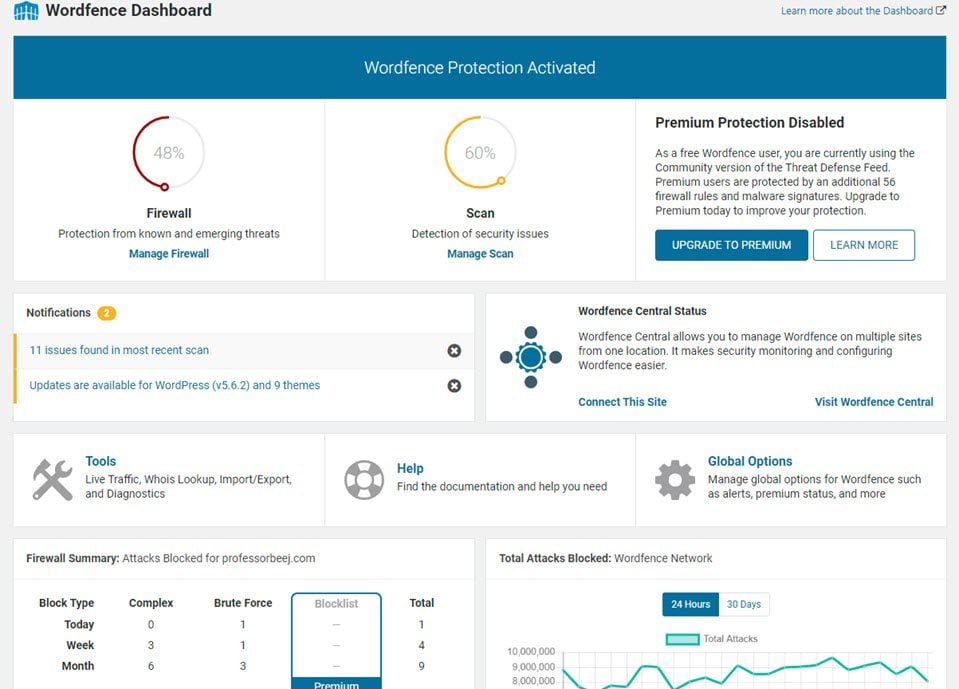
Wordfence dashboard during a malware scan – helpful for spotting issues. Credit: elegantthemes.com.
Regular scans prevent this. In 2026, with rising cyber threats, two-factor auth and strong passwords are musts.
Method 8: Check for Mod_Security Issues
Mod_security is a server firewall that can block valid requests, causing 403 errors.
Contact your host to check logs and whitelist rules if needed.
Real-Life Case Studies: How Others Fixed 403 Forbidden Error in WordPress
To make this guide even more practical, here are some real case studies from WordPress users who dealt with this error. These are drawn from forum posts, support tickets, and community discussions up to 2026. You'll see how the methods above applied in actual scenarios.
Case Study 1: Plugin Conflict After Update (Common in WooCommerce Sites)
A user running a WooCommerce store updated to the latest version in mid-2025. Suddenly, search functions on admin pages like Orders and Products threw 403 errors. Searching in Categories worked fine, but anything else failed.
They tried disabling plugins and found WP Super Cache was the culprit – an older version conflicted with the update. Updating the cache plugin to version 1.12.4 resolved it completely. No need to touch permissions or .htaccess.
This shows why deactivating plugins one by one (Method 4) is so powerful, especially after updates.
Case Study 2: Cloudflare WAF Blocking Admin Actions
In early 2026, a blogger using Cloudflare noticed 403 errors when editing posts in the Block Editor. The site loaded fine for visitors, but admin saves failed.
Pausing Cloudflare fixed it temporarily. Digging into Cloudflare's security logs revealed the WAF was flagging certain REST API calls as suspicious. They created a custom rule to bypass WAF for /wp-admin and wp-json endpoints from their IP.
After adjusting (Method 6), everything worked smoothly. Many users report similar issues when enabling Bot Fight Mode or aggressive firewall rules.
Case Study 3: Mod_Security Triggered by Plugin Installs
A developer on a shared hosting plan (like Plesk or cPanel) tried installing Elementor Pro and Rank Math. Every time they activated add-ons or saved pages, a 403 error popped up.
Server logs showed ModSecurity rules blocking the requests, mistaking them for injections. The host whitelisted specific rule IDs (like those related to POST requests in wp-admin).
Disabling ModSecurity for the domain temporarily allowed installs, then re-enabling with exclusions fixed it long-term. This highlights why contacting your host (for server-side issues) is key.
Case Study 4: File Permissions Mess After Migration
After migrating a site from local (MAMP) to live hosting in late 2025, the entire site showed 403 Forbidden.
FTP checks revealed folders set to 777 (too open) and some files to 600. Resetting to standard WordPress permissions (755 folders, 644 files) and running the host's "Fix Ownership" tool solved it.
Combined with regenerating .htaccess, the site was back in minutes. Migrations often mess up permissions – always check Method 2 first in such cases.
Case Study 5: Malware-Altered Permissions
A small business site got hacked in 2025. Visitors saw 403 on random pages, and the owner couldn't upload media.
A Sucuri scan found injected files changing permissions on wp-content/uploads. Cleaning the malware and resetting permissions restored access.
Restoring from a clean backup was the fastest fix. This case stresses regular scans (Method 7) and backups.
These cases prove that most 403 errors stem from plugins, CDNs, server security, or permissions – and systematic troubleshooting works.
Advanced Troubleshooting for Persistent 403 Errors
If basic fixes don't work, dig deeper. Use developer tools in browser to see exact response headers.
Check for PHP errors in wp-config by enabling debug.
Monitor with tools like Query Monitor.
In multisite setups, network-wide plugins might be culprits.
For e-commerce sites with WooCommerce, payment gateways can cause 403 on checkout.
API calls in 2026, with REST API updates, might need authentication tweaks.
How to Prevent 403 Forbidden Error in the Future
Prevention beats cure. Keep everything updated: WordPress, themes, plugins.
Use reliable hosts with good security.
Monitor permissions regularly.
Avoid sketchy plugins.
Set up monitoring like UptimeRobot for alerts.
Backup weekly.
Educate yourself on WordPress security best practices.
SEO Tips to Recover from Downtime
If your site was down, Google might have noticed. Resubmit sitemap in Search Console.
Use RankMath to optimize – set focus keyword "Fix 403 Forbidden Error" in posts like this.
Build backlinks, improve speed.
Frequently Asked Questions
What does 403 Forbidden mean exactly? It's a server refusal to access.
Is 403 the same as 401? No, 401 is unauthorized, needs login.
Can visitors see 403? Yes, affects everyone.
How long to fix? Minutes to hours, depending on cause.
Does it hurt SEO? Temporary downtime might, but quick fix minimizes.
Conclusion
Fixing the 403 Forbidden Error in WordPress isn't rocket science, but it requires patience and methodical checks. With these steps and real case studies, you're now ready to tackle it head-on. Start simple, like clearing cache or checking plugins, and work your way up. In 2026, with smarter tools and hosts, these issues are quicker to resolve than ever. If you're still stuck after trying these, drop a comment or reach out to your host – they've seen it all. Keep your site secure and running strong!